This guide will explain how to use Under Attack Mode (UAM) to protect your website.
In this article:
First assess whether you are using Cloudflare
How to log in to cPanel and activate Imunify360 UAM
UAM will stay on until disabled
Imunify360 now includes an Under Attack Mode (UAM) feature which can provide additional protection if your website is experiencing a large amount of malicious or automated traffic.
When Under Attack Mode is enabled, visitors are presented with a short browser challenge before they are allowed to access your website. Normal visitors using a modern web browser should be able to complete this challenge automatically, while many simple bots and automated attack tools will be unable to proceed.
Under Attack Mode is intended as a temporary protective measure during an active attack or unusually high level of automated traffic. Once enabled, it will remain active until you turn it off again.
Before proceeding with using Imunify360 UAM, you should assess whether you are using Cloudflare?
If your domain is already using Cloudflare, we recommend using Cloudflare's own Under Attack Mode first. Cloudflare performs its challenge at its network edge, before unwanted traffic reaches your hosting at all. This generally makes it the more efficient option for a domain already protected by Cloudflare. Cloudflare's Under Attack Mode also provides additional security checks specifically intended to help mitigate Layer 7 DDoS attacks. Note that Imunify360 UAM can operate successfully even with Cloudflare in place - using the option which is "closest" to the attack is simply the preferred choice.
Guidance on enabling Cloudflare UAM can be found here: https://developers.cloudflare.com/fundamentals/reference/under-attack-mode/
Imunify360 UAM is particularly useful for websites which do not use Cloudflare, or as an additional option when appropriate.
To activate Imunify360 UAM
1) First, you must log in to cPanel. If you are unsure as to how this is done, visit the following page under your account:
https://wpopt.net/clientarea.php?action=services
2) Select the active hosting account containing the website you wish to protect. Please note that one hosting account may contain several domains, so make sure you select the hosting account where the affected domain is hosted.
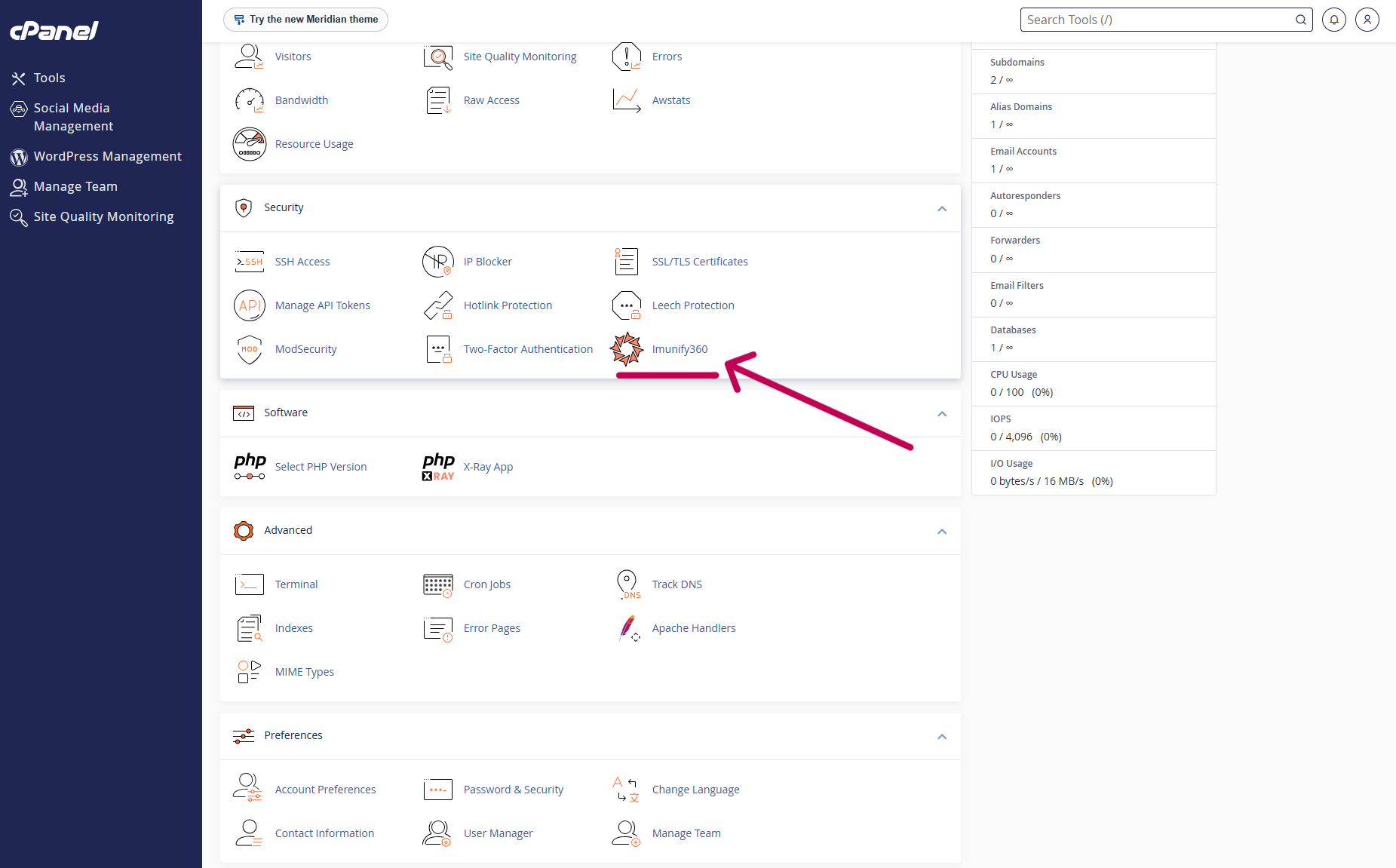
3) Click Log in to cPanel and then identify and click on "Imunify360"
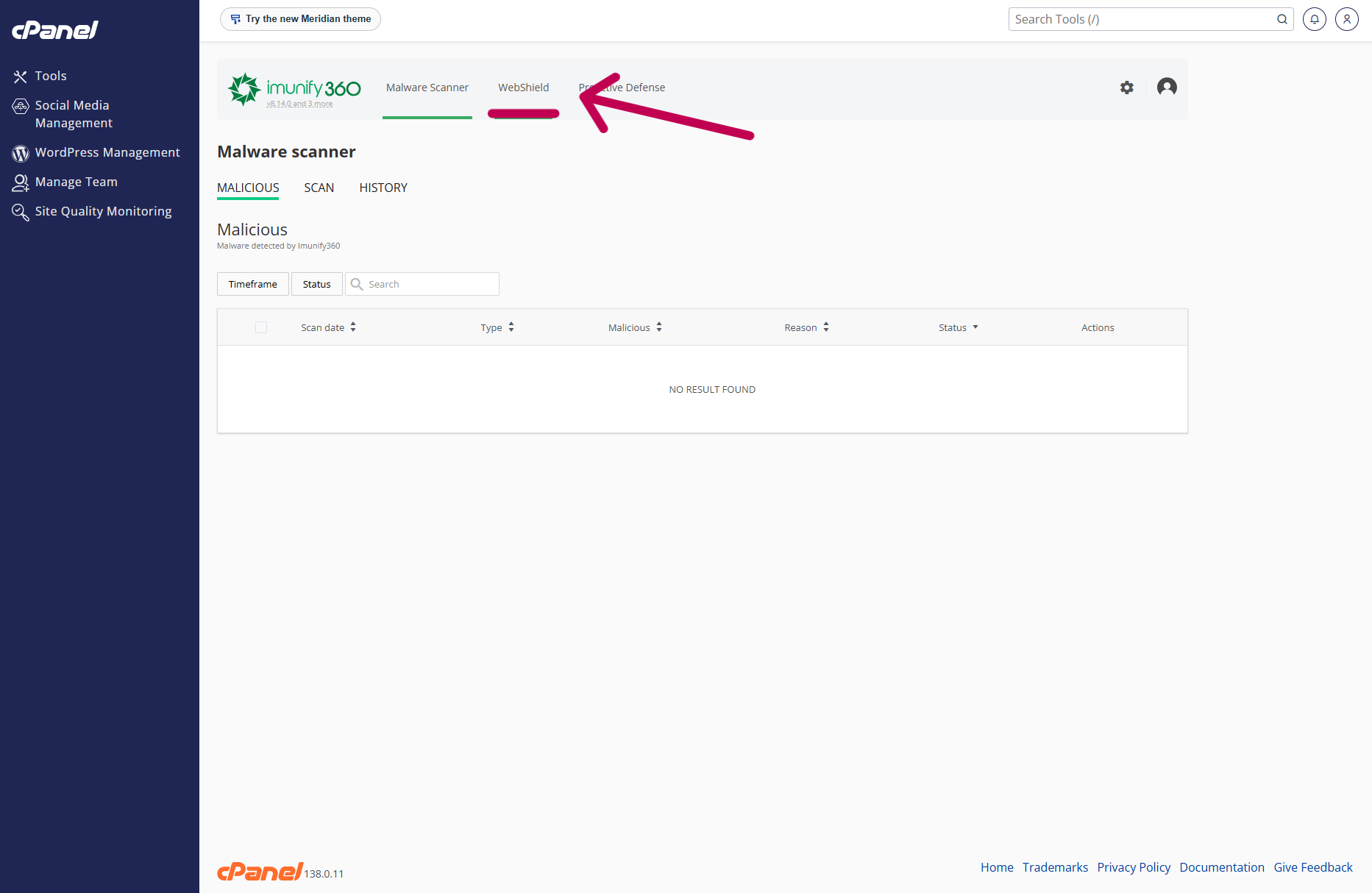
4) Within Imunify360, select the WebShield tab
5) Under "Under Attack Mode" you can then review, activate, and disable previously created rules. If you are using UAM for the first time, click "Add" to add a new rule.
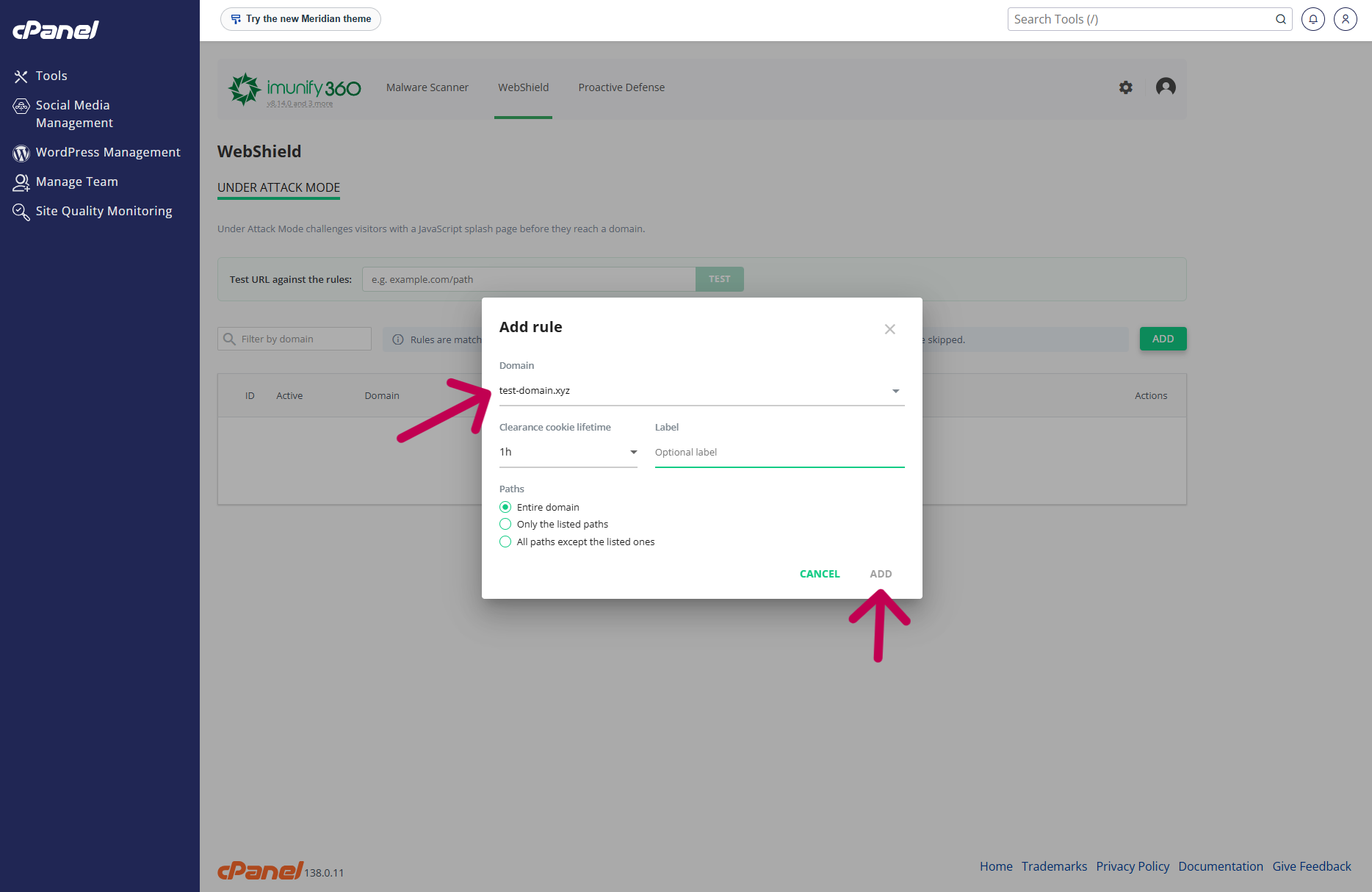
6) You can then select the domain or subdomain you wish to protect.
The available options include:
- Domain – Select the domain to which the rule should apply.
- Clearance cookie lifetime – Determines how long a visitor who has successfully passed the browser challenge can continue using the website before being challenged again. For example, with a value of 1 hour, a visitor who successfully passes the challenge will normally not see another challenge for one hour.
- Label – An optional description for your own reference.
- Paths – You can apply protection to the entire domain, only to specified paths, or to all paths except specified ones.
For most situations where the entire website is under attack, select Entire domain.
If only a particular area is being targeted - for example a login, checkout or other specific section - the path options can be used to narrow the rule rather than challenging visitors across the whole website. Imunify360's UAM supports both inclusion and exclusion of specific URL paths.
7) Click Add to create the rule. If desired, you can use the test box at the top to verify whether a specific URL is being protected by UAM (useful if you have configured UAM against a specific URL, such as a login or checkout page).
What visitors will see
While the rule is active, visitors matching it will receive a short browser challenge before they reach your website. Note that logging in to cPanel generally whitelists your IP address, so you may not encounter the challenge yourself.
Once the challenge has been successfully completed, Imunify360 sets a clearance cookie in the visitor's browser. The clearance cookie lifetime controls how long that visitor can browse without being challenged again.
Important: Under Attack Mode stays enabled until you turn it off
Under Attack Mode does not automatically turn itself off when an attack stops.
Once you enable a rule, it will remain active until you return to cPanel > Imunify360 > WebShield > Under Attack Mode and disable or remove it.
We therefore recommend using UAM only for as long as it is required. Leaving it enabled unnecessarily adds an extra step for legitimate visitors.
Note if you are using Cloudflare: If you use Cloudflare and decide to use Imunify360 UAM, instead of Cloudflare's own UAM, we strongly recommend purging your Cloudflare cache after Imunify360 UAM is disabled.
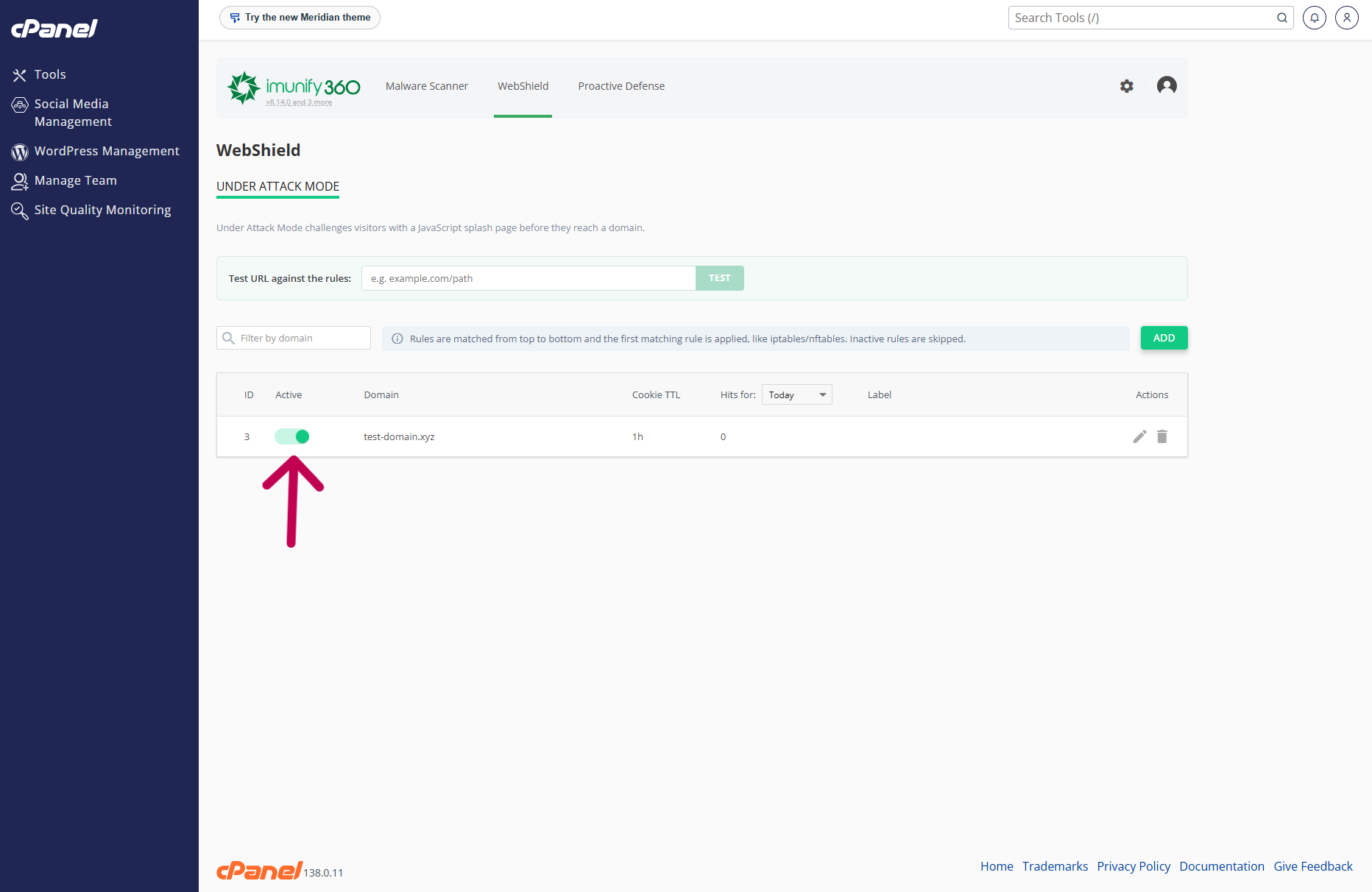
You can temporarily disable an existing rule using the Active switch. This allows you to retain the rule and quickly enable it again later without having to recreate it.
Additional information regarding monitoring and other automated services
Because Under Attack Mode relies on a browser challenge, legitimate automated systems which cannot execute JavaScript may also be unable to access a protected URL.
This can potentially affect services such as external monitoring, webhooks, APIs, automated integrations or other systems which make HTTP requests directly to your website.
If enabling Under Attack Mode causes an important external service to stop communicating with your website, disable the rule and contact WPopt support so we can investigate the appropriate solution.
When should I use Under Attack Mode?
Under Attack Mode can be useful when your website is receiving a sudden flood of automated or malicious requests, bots are repeatedly attacking a login or checkout area, or unusually heavy malicious traffic is affecting website performance.
It should not normally be necessary during everyday operation.
If your website uses Cloudflare, use Cloudflare's Under Attack Mode as your first choice where possible. Because Cloudflare challenges the traffic at its own network edge, unwanted requests can be stopped before they reach your hosting service.