As of July 2025, WordPress is now actively advising people to use newer versions of PHP. It is recommended to do this. Newer PHP versions offer a variety of security and stability improvements. Note however that we use hardened versions of PHP from CloudLinux, meaning they do in fact receive security patches and hardening.
Updating the PHP version in use on your site is easy, and reversible (in case you encounter any issues).
Note that the PHP change is account-wide. If you have multiple sites under your account, you must ensure each one is compatible with PHP 8.x before you can proceed with switching the version of PHP.
How to change the PHP version
1) Log in to cPanel. If you're unsure how to do this, click on your products in your dashboard.

2) Click on your hosting product.

3) Click on "Log in to cPanel" on the hosting product overview page.

4) On the page that loads, scroll down until you find "Select PHP Version".

5) Choose the new PHP version from the drop-down menu next to "Current PHP version".

6) Click on "Apply".

7) Note that you're not done yet. You should then click the "Reset to default" button in the top-right of the page. This will ensure the correct modules that WordPress needs are actually loaded.

What to do if your site doesn't load after changing the PHP version
If your site stops loading after changing the PHP version, simply repeat steps 5 and 6 above to revert to the original PHP version.
How to establish why a site won't load after switching to PHP 8.x
There are a number of reasons why a site will stop loading after switching to PHP 8.x.
First, ensure you have completed step 7 above.
If you have done this, and you still see a critical error, you should enable debugging on your site:
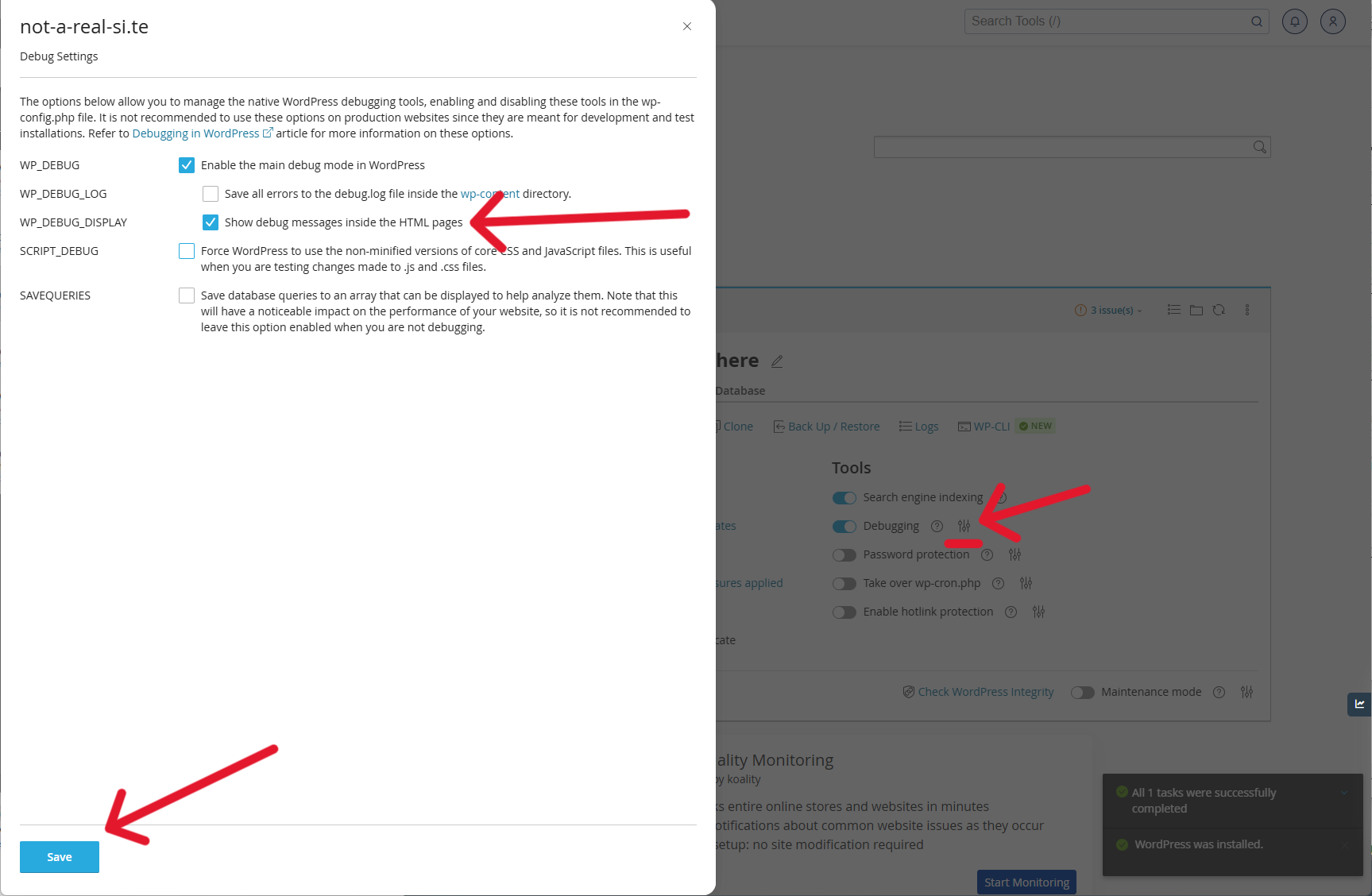
1) In cPanel, click on "WordPress Management". You should see your site(s) here. Toggle the switch next to "Debugging".

2) Click the settings button to confirm that output of errors in the page is enabled (so you can see the error inside your browser) and save that.
3) Try again to reproduce the error you encountered. You should see some references which allude to the plugin or theme which is causing the issue. If the issue is plugin related, you will need to update or remove the plugin before you can successfully switch to PHP 8.x. If the issue is caused by your theme then you will need to update your theme, or switch to a newer, supported theme before you can complete this change.
4) Be sure to turn OFF debugging after you've finished with it.